How to Convert Word to PDF Without Losing Formatting
Published:
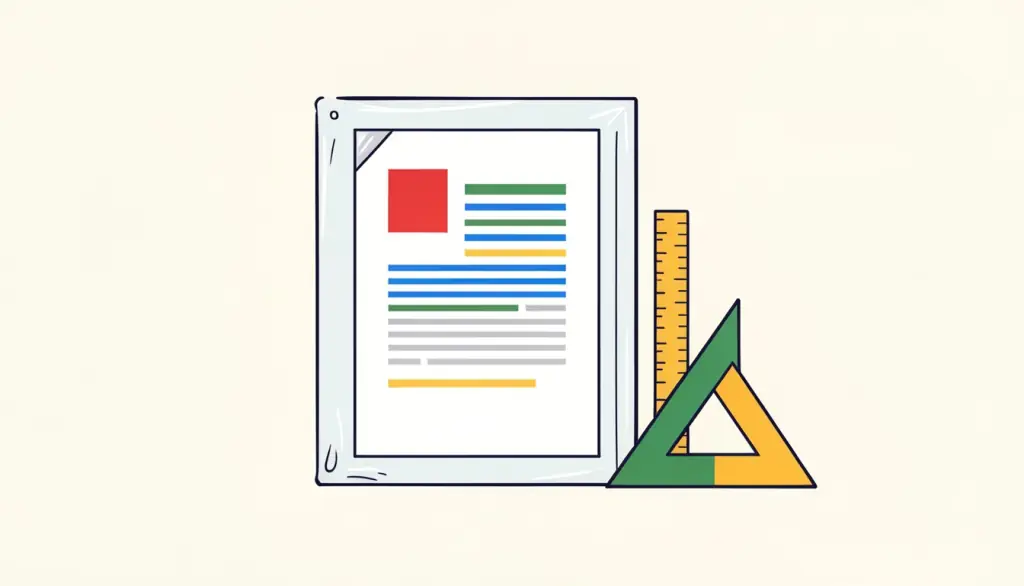
You spent an hour getting your CV or report to look exactly right in Word. Then you convert it, open the PDF, and the second page starts with a lonely heading, a table has slipped, and the font looks oddly different. Word documents are not fixed layouts; they are re-flowed every time they are opened, and the result depends on the fonts and settings of whatever program does the opening.
A PDF freezes the layout, which is precisely why people ask for one. In this guide we explain what makes Word documents shift during conversion, the checks we do before converting, and how our Word to PDF tool handles your file.
Why formatting changes in the first place
Word stores your text, styles and settings, but not the final position of every line. When another program converts the document, it lays everything out again. If it has exactly the same fonts and interprets the settings the same way, the result is identical. If one font is missing, a substitute with slightly different letter widths takes its place, a line wraps one word earlier, and that one extra line can push a heading onto the next page.
Most formatting problems trace back to one of four things: fonts, images positioned to float freely, manual spacing used instead of page breaks, and leftover tracked changes or comments. Fix those, and conversion becomes boring, which is what you want.
Fonts: the biggest cause of shifting layouts
Our converter runs on our server, and if your document uses a font the server does not have, a similar font is substituted. With common fonts such as Arial, Times New Roman, Calibri-style sans serifs or Georgia-style serifs, you will rarely notice anything. With a designer font you bought or downloaded, spacing can shift.
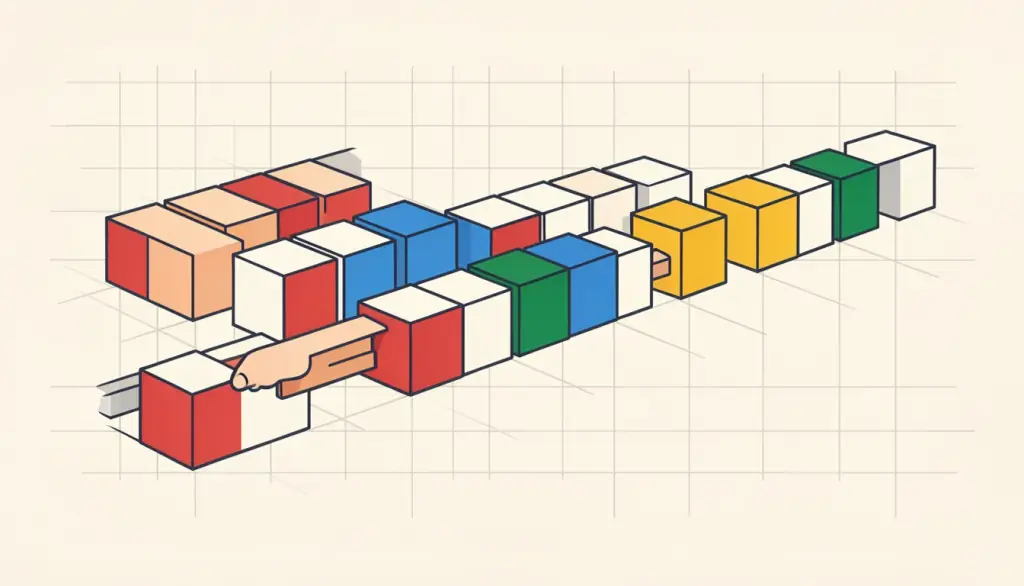
There are two reliable fixes. Either embed the fonts in the document (in Word on Windows: File, Options, Save, Embed fonts in the file), or switch to a widely available font before converting. For CVs and official letters we honestly prefer the second option; a clean, common font reads well everywhere and avoids surprises.
If you have Microsoft Word installed, its own Save As PDF uses your exact fonts and is our first recommendation. Our tool is for the times you do not: a Chromebook, a borrowed laptop, a phone, or a file someone sent you that you just need as a PDF.
Images, page breaks and tracked changes
A few minutes of tidying in Word saves a lot of frustration afterwards. These are the checks we run on any document that matters:
- Images: set important pictures to 'In line with text' rather than floating. Inline images move with their paragraph and stay where you expect.
- Page breaks: if you pressed Enter twenty times to push a heading to a new page, replace those empty lines with a real page break (Ctrl+Enter or Cmd+Enter). Empty lines shift; page breaks do not.
- Headings: turn on 'Keep with next' for heading styles so a heading never sits alone at the bottom of a page.
- Tracked changes and comments: accept or reject all changes and delete comments first. Otherwise they may appear in the PDF in ways you did not intend, and you might share edits you meant to keep private.
- Page size and margins: check them in Word, because the PDF keeps what you set there. A Letter document sent to an A4 country prints with odd margins.
How to convert Word to PDF step by step
Unlike most of our tools, Word to PDF does not run in your browser; converting Office formats properly needs a full office engine. The file is uploaded to our server in Germany, converted, and deleted right after conversion. We do not keep a copy. You need a free account; the free plan covers 3 tasks per day with files up to 10 MB, and the paid plans allow more tasks and larger files.
- 1. Open Word to PDF and drop your file into the box. DOC, DOCX, ODT, RTF and TXT files are accepted.
- 2. Click Convert and wait a few seconds while the server lays out the document.
- 3. Download the PDF.
- 4. Open it and scroll through every page, paying attention to page endings, tables and images.
- 5. If something moved, fix it in the Word file and convert again. It is quicker than trying to patch the PDF.
Finishing touches after conversion
Headers, footers, tables, links and the page size and margins from Word carry over to the PDF. What you do next depends on where the document is going. For an application with several attachments, Merge PDF combines your converted letter with certificates and other PDFs into one file. Long reports benefit from Add Page Numbers if you did not set them in Word. If the PDF is image-heavy and too big for an upload portal, Compress PDF brings it down.
If you are converting a Word document only to fill in a standard form, such as an invoice, a rental application or a simple agreement, check our fillable templates at /templates first. You type into the fields in your browser and download a finished PDF, which skips the Word step entirely.
A quick check before you send it
Before the PDF goes to an employer, a client or a printer, we give it one last look with fresh eyes. Open it on a different device than the one you used to write the document, ideally a phone, because a layout problem that hides on a large screen often jumps out on a small one. Check that every page ends where you expect, that tables did not split awkwardly across pages, and that images are sharp.
Also check the file name. 'Document1.pdf' or 'final_v3_REAL.pdf' looks careless in an inbox; something like 'Surname-CV-2026.pdf' takes five seconds and makes the file easy to find for whoever receives it.
Frequently asked questions
Is my Word file stored on your server?
No. It is uploaded to our server in Germany only for the conversion and deleted right after. We do not keep a copy.
Why did my font change in the PDF?
The server did not have that font, so a similar one was substituted. Embed fonts in Word or use a common font to avoid it.
Will tracked changes show up in the PDF?
They may. Accept or reject all changes and delete comments in Word before converting to be safe.
Which formats can I convert?
DOC, DOCX, ODT, RTF and TXT. Excel and PowerPoint files have their own converters.
Is Word to PDF free?
Yes, with a free account: 3 tasks per day and files up to 10 MB. Paid plans raise those limits.