How to Password Protect a PDF the Right Way
Published:
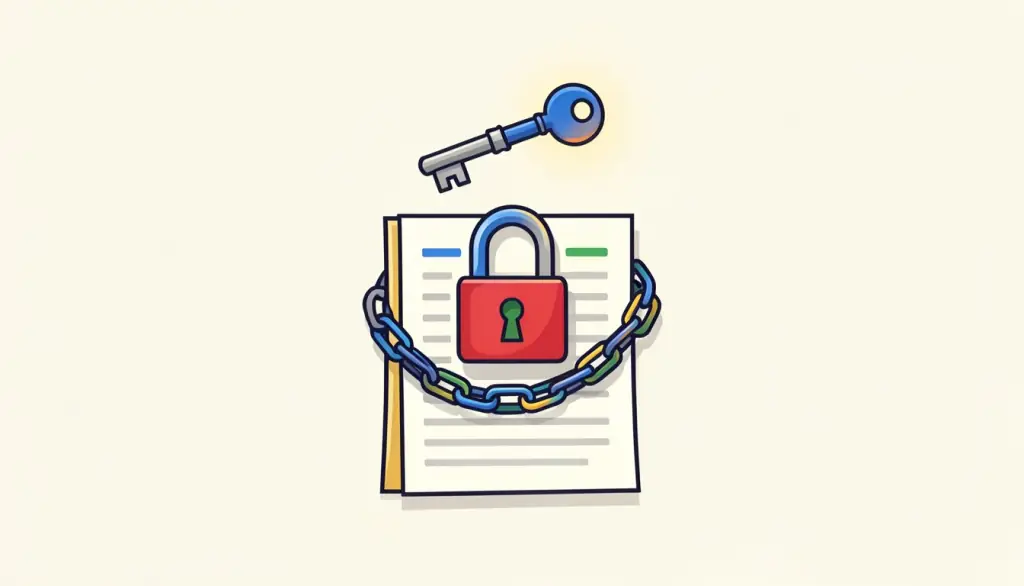
Payslips, bank statements, medical letters and signed contracts all have something in common: they end up in email threads, shared drives and USB sticks that we do not fully control. A password on the PDF is a simple layer of protection that keeps the contents private even if the file lands in the wrong inbox.
In this guide we show how we add a password to a PDF in under a minute, how to choose a password that actually holds up, how to share it without undoing the protection, and what a PDF password can and cannot do for you.
Why put a password on a PDF at all?
Email is not a vault. Messages get forwarded, mailboxes get compromised, and attachments stay in sent folders for years. Cloud folders are shared with more people than we remember, and a lost laptop or USB stick hands its contents to whoever finds it. An encrypted PDF stays unreadable in all of these situations until someone enters the password.
We add a password whenever a document contains identity numbers, salary details, health information or anything we would not want read aloud in a café. It costs a few seconds and saves a lot of worry.
How to add a password to a PDF, step by step
With pdfdots Protect PDF the encryption happens in your browser using qpdf, a long-established open-source PDF library compiled to WebAssembly. The unprotected file is never uploaded to our servers or anyone else's. You need a free account, and there are no ads or watermarks.
- Open Protect PDF and drop your file into the box, or click to choose it.
- Enter a password, then type it again to confirm it.
- Click Protect PDF and download the encrypted copy.
- Open the downloaded file once to check that it asks for the password, then delete any unprotected copies you no longer need.
How strong is AES-256 encryption?
Protect PDF uses AES-256, the strongest encryption the PDF standard supports. Nobody breaks AES-256 by attacking the cipher itself. When protected PDFs are opened without permission, it is almost always because the password was weak, reused, or sent alongside the file.
That means the password you choose matters far more than the algorithm. A short word with a number on the end can be guessed by software in minutes. A passphrase of four or five unrelated words is both easier to remember and dramatically harder to crack. We keep ours in a password manager, which also solves the problem of remembering which document uses which password.
How to share the password safely
The single most common mistake we see is putting the password in the same email as the attachment. Anyone who can read that email can now read the PDF, so the encryption achieved nothing. Always send the password through a different channel.
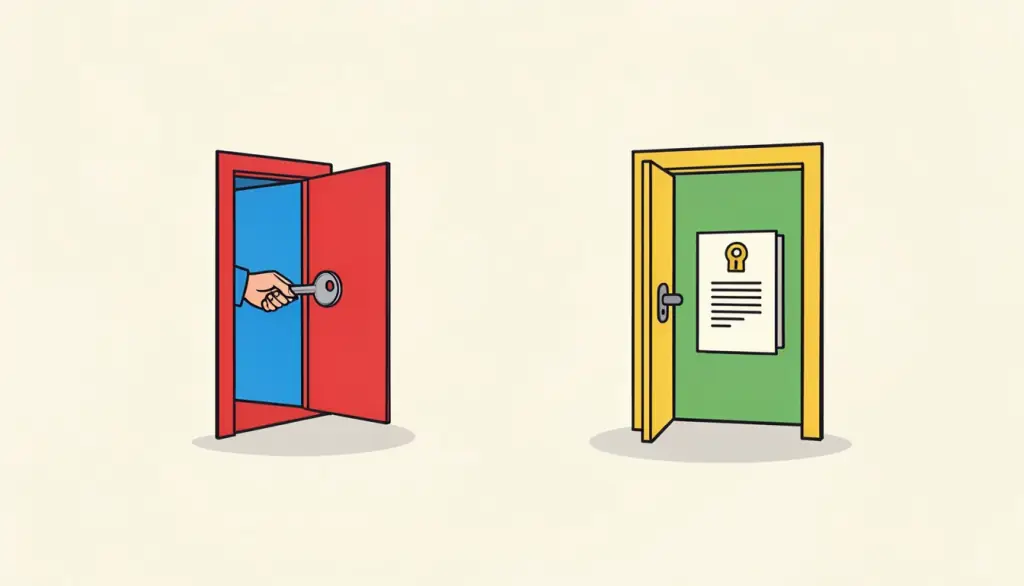
- Email the PDF, then send the password by text message or tell it over the phone.
- For recurring exchanges, agree on a password once in person and reuse it only with that person.
- Never write the password in the file name or the email subject line.
- If you suspect the password leaked, protect the original file again with a new password and resend it.
What a PDF password does not do
A password controls who can open the file, but once someone has opened it, they can read it, screenshot it or print it. It is protection in transit and at rest, not a guarantee against a trusted recipient sharing the contents.
Encryption also does not remove information. If some parts of the document should never be seen, even by the person with the password, black them out permanently with Redact PDF before you protect it. And there is no recovery: we never see or store your password, so if you forget it, the only way back is to protect the original, unencrypted file again.
Which documents we always protect
Over time we have settled on a short list of files that never leave our devices without a password. It is not exhaustive, but if a document falls into one of these groups, we treat protection as the default rather than an extra step.
For documents that are only shared inside a trusted team, a password can be overkill, and it makes search and previews in cloud drives less useful. We weigh convenience against what would happen if the file leaked, and when the honest answer is that it would be embarrassing or costly, we protect it.
- Payslips, tax returns and bank statements sent to an accountant or a landlord.
- Copies of passports, ID cards and residence permits for applications.
- Medical reports, prescriptions and insurance claims.
- Signed contracts and HR documents that include salaries or home addresses.
Working with protected PDFs later
Most other tools need an unlocked file to work on. Our routine is to do everything first, then lock the final version: combine documents with Merge PDF, shrink the result with Compress PDF, add a signature with Sign PDF, and only then run Protect PDF as the last step.
If you receive a locked PDF and know its password, Unlock PDF saves a copy without it so you can edit or merge it. It does not crack or guess passwords, so it only helps with files you are entitled to open.
Frequently asked questions
Is my PDF uploaded to add the password?
No. Encryption runs locally in your browser with qpdf compiled to WebAssembly, so the file and the password stay on your device.
Will the protected PDF open in Adobe Reader and Preview?
Yes. Modern readers such as Acrobat, Preview, Chrome and Edge open it once the correct password is entered.
Can you recover a forgotten password?
No. We never see or store it, and AES-256 cannot be bypassed. Keep the password in a password manager.
How do I remove the password later?
Use Unlock PDF and enter the current password. It saves an unprotected copy of the file.
Can I use the same password for every PDF?
It is convenient but risky: if one recipient learns it, they can open every file. We use a different passphrase per recipient and keep them in a password manager.