How to Sign a PDF Without Printing, Scanning or Faxing
Published:
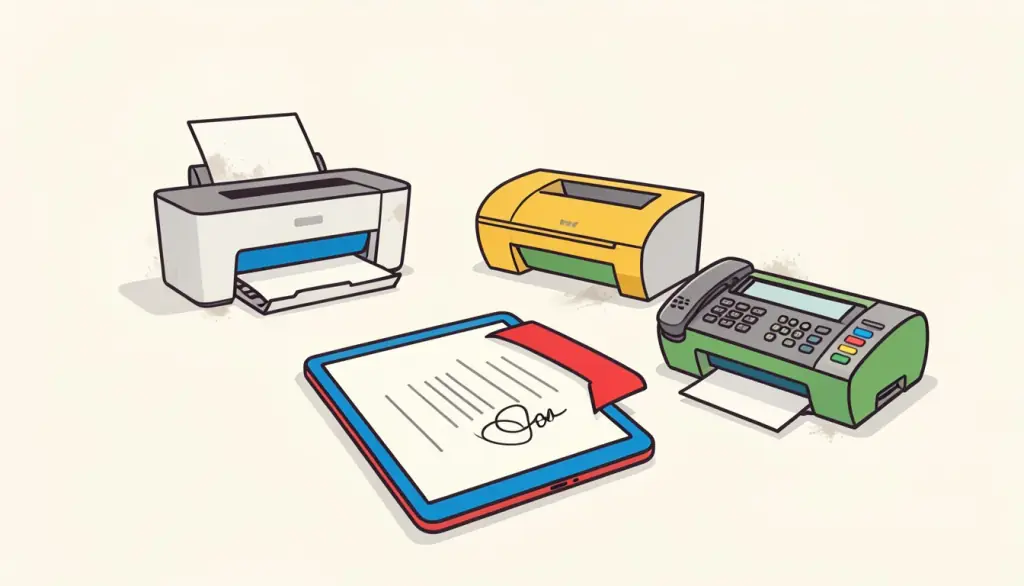
Someone emails you a form, asks you to sign it and send it back today, and you do not own a printer. Or you do, but it is out of toner, and the scanner at the office has a queue. For a long time the only answer was the print, sign, scan loop, which turns a ten-second task into a twenty-minute errand and usually produces a crooked, grey scan.
We sign most of our everyday paperwork digitally now, and in this guide we explain exactly how we do it, how to make the signature look natural on the page, and where the limits of a simple electronic signature lie, so you know when it is fine and when you need something stronger.
What you need before you start
Very little. You need the PDF itself, a browser, and a way to draw: a mouse works, a laptop trackpad works better, and a phone or tablet with a finger works best of all because the movement is closest to real handwriting. If you would rather not draw, you can type your name instead.
With pdfdots Sign PDF the whole job runs in your browser, so the document is not uploaded anywhere. You need a free account, and there are no ads, no watermark and no per-document fee. That matters for the kind of files people typically sign: leases, employment contracts, medical consent forms and invoices tend to contain exactly the details you would rather not send to a random website.
How to sign a PDF step by step
Here is the routine we follow for almost every document. It takes about a minute once you have done it once or twice.
- Open Sign PDF and drop your file into the box, or click to choose it.
- Draw your signature with the mouse, trackpad or your finger. If it comes out shaky, clear it and try again; the third attempt is usually the good one.
- Alternatively, switch to typing, enter your name, and it is rendered in a handwriting-style font.
- Choose the page that holds the signature line, then click the exact spot where the signature should go.
- Use the size slider until the signature matches the surrounding text, check the page, and click Sign PDF to download the signed copy.
Tips for a signature that looks natural
The most common giveaway of a digitally signed document is a signature that is far too big, sitting on top of the printed text like a sticker. Real signatures are roughly the height of two lines of body text. We shrink the slider until the signature sits on the line without covering the name printed beneath it.
Draw slowly on a trackpad. Fast movements produce jagged corners, while a steady pace gives smooth curves. On a phone, turning the device sideways gives you a wider drawing area, which helps with longer signatures. If your handwritten signature is simply not reproducible with a mouse, the typed option is a perfectly acceptable choice for most forms.
Finally, zoom in on the result before you send it. A signature placed a few millimetres too low can overlap the next paragraph, and it is much easier to fix now than after the other party has already filed the document.
Is a signature like this legally valid?
What Sign PDF creates is a simple electronic signature: an image of your signature stamped onto the page. In many countries, including the EU under eIDAS and the US under the ESIGN Act, simple electronic signatures are recognised for a wide range of everyday agreements, such as rental applications, quotes, school forms and many business contracts. The key question is usually whether both sides agreed to sign this way, and an email thread asking you to sign and return the PDF is often good evidence of that.
It is not a certificate-based or qualified digital signature. It carries no cryptographic proof of who signed and does not detect later changes to the file. Some documents, such as certain notarial deeds, property transfers or government filings, require a qualified signature or wet ink. We are not lawyers, so if the stakes are high or the document says which signature type it needs, follow that requirement and use a dedicated signing service.
Signing on behalf of several people
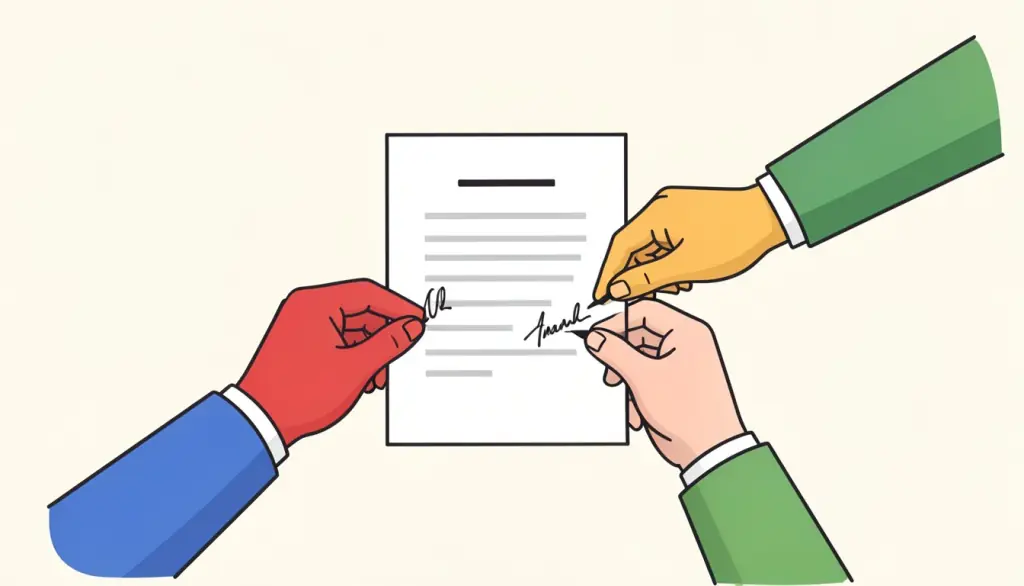
Some documents need more than one signature, such as a lease signed by two tenants or a form that needs both a parent and a student. Each person can sign their own copy on their own device: the first signer downloads the signed PDF and sends it on, and the next person opens that file in Sign PDF and adds their signature on the next line. Only sign in someone else's name if they have clearly asked you to, and never reuse a signature image of another person.
What to do after signing
A signed document often needs one or two more steps before it goes out. If the form has fields you still need to complete, fill them first with Fill PDF Form and sign afterwards, so the signature is the last thing added. If you want to make sure nobody can quietly edit the form values later, run the file through Flatten PDF.
If the signed contract contains personal data and is travelling by email, add a password with Protect PDF and share the password by phone or text message. And if the recipient's upload portal rejects the file because it is too large, Compress PDF will usually bring it well under the limit without making the signature blurry.
Frequently asked questions
Can I sign a PDF on my phone?
Yes. Open Sign PDF in your mobile browser, draw the signature with your finger, then tap the spot on the page where it should appear.
Is my document uploaded when I sign it?
No. The signature is added locally in your browser and the file never leaves your device.
Does the signed PDF have a watermark?
No. Only your signature is added. There is no watermark or branding, and you only need a free account.
Is this the same as a certified digital signature?
No. It is a simple electronic signature without a cryptographic certificate. For documents that require a qualified signature, use a dedicated signing service.