How to Reorder, Delete and Rearrange Pages in a PDF
Published:
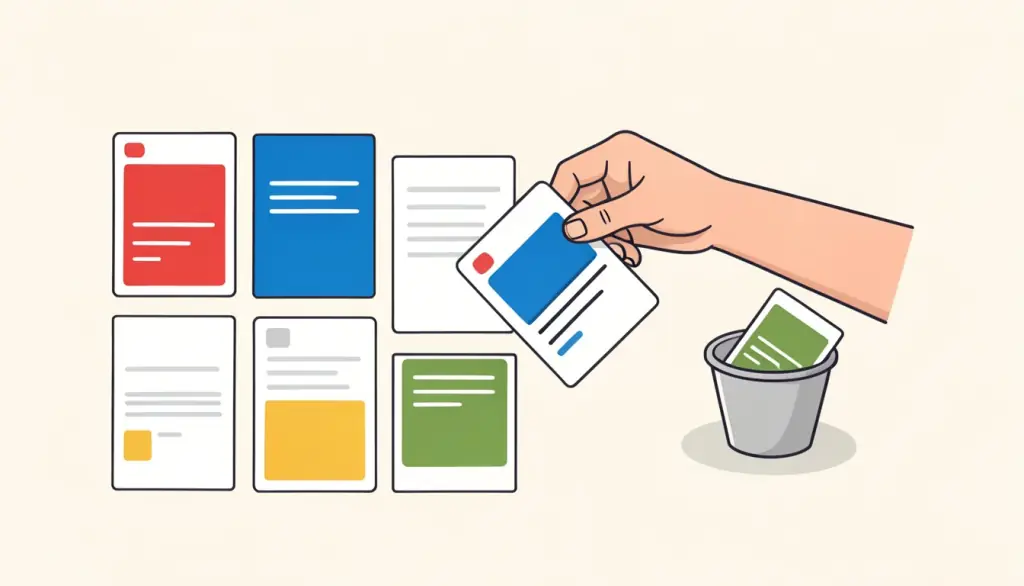
Most PDFs that need reorganizing are almost right. A scanner fed a stack in reverse, a merged application has the CV in front of the cover letter, or a report has an appendix sitting in the middle. Retyping or re-exporting the whole thing is overkill when all you need is to move a few pages and drop a couple of others.
In this guide we walk through how we rearrange pages visually, how we handle blank pages from duplex scans, how to fix the classic all-fronts-then-all-backs scan, and when another tool such as Merge PDF or Split PDF is the better first step.
Why a visual page view helps
You can reorder pages by typing a sequence of numbers, but with anything longer than a handful of pages it gets confusing fast, and one missing number silently drops a page. Organize PDF shows every page as a thumbnail, so you see the content you are moving. You drag a page to its new place and delete the ones you do not want, then save a new PDF.
The thumbnails are rendered in your browser and the new file is built there too, so nothing is uploaded. Pages are copied as they are rather than re-rendered, which means text stays selectable and image quality does not change. Your original file is untouched, so you can always start over.
How to reorganize a PDF with pdfdots, step by step
You need a free account. The free plan includes 3 tasks a day for files up to 10 MB; the paid Bronze, Silver and Gold plans raise those limits for long scans and large bundles.
- 1. Open Organize PDF and drop your file into the box, or click to choose it.
- 2. Wait for the thumbnails to appear. Long documents take a few seconds, especially on a phone.
- 3. Drag each page thumbnail to the position where it belongs.
- 4. Delete any page you do not want, such as blank backs or a fax cover sheet.
- 5. Click Save PDF, then scroll through the result once to confirm the order before you send it.
Removing blank pages and junk pages
Duplex scanners scan both sides of every sheet, including the empty backs, so a ten-page letter can come out as twenty pages with every second one blank. Bank downloads add marketing inserts, and exported reports sometimes end on an empty page. In the thumbnail view these pages are easy to spot because they are visibly empty or obviously unrelated.
Deleting pages is also our favourite way to make a file smaller without touching quality. Unlike compression, the remaining pages are left exactly as they were. If you already know the page numbers and do not need to see them, Remove Pages lets you type a list like 2, 4, 6-8 instead.
One caution: deleting a page does not remove its content from bookmarks or a table of contents that refers to it. For truly sensitive material, check the rest of the document too.
Fixing a double-sided scan that came out in the wrong order
A common problem with simple scanners: you scan all the fronts, flip the stack, scan all the backs, and end up with pages 1, 3, 5, 7 followed by 8, 6, 4, 2. In the thumbnail view you can interleave them by dragging each back page behind its front. For a short document this takes a minute or two.
For long documents we sometimes split the work: Split PDF into the fronts part and the backs part, check that each part is complete, then merge and arrange. If some pages also came out sideways or upside down, run Rotate PDF on the file before or after reorganizing, since Organize PDF changes order rather than orientation.
Combining Organize with Merge and Split
Organize PDF works on one file at a time. When your pages come from several documents, merge them first and then fine-tune the order. This is how we build job applications, grant submissions and contract packages: Merge PDF to combine the cover letter, CV, certificates and references, then Organize PDF to put certificates in date order and remove a duplicate page.
The reverse also comes up. If one scan contains several unrelated documents, reorganize first so each document's pages sit together, then use Split PDF with ranges to cut it into separate files. As a final step, Add Page Numbers makes the new order explicit and easy to reference.
Tips for long documents and phones
Organize PDF has no page limit, but generating thumbnails for a 300-page file takes longer, especially on an older phone. For very long documents we prefer a laptop, where the bigger screen also makes it easier to see several pages at once and drag them over a longer distance. On a phone, it helps to work in small moves rather than dragging a page from the very end to the very beginning in one go.
When the reorganization is large, for example rebuilding a whole bundle in a new sequence, we sketch the target order on paper or in a note first: cover, letter, CV, certificates, references. It sounds old-fashioned, but it prevents silly mistakes and makes the final check quick.
Before sending, we always do one last scroll through the saved file and compare the page count with what we expect. If a page is missing, the original is still unchanged, so you can simply open it again and redo the step.
If the reorganized file is headed for an upload portal with a size limit, run Compress PDF as the very last step. Reordering and deleting never increase the size, so compressing at the end gives you the smallest file without having to repeat any work if you change the order again.
Frequently asked questions
How do I move a page?
Drag its thumbnail and drop it where you want it, then click Save PDF.
Can I delete pages in the same step?
Yes. Remove any page from the thumbnail view before saving.
Does reordering reduce quality?
No. Pages are copied as they are, just in a new order, so text stays selectable.
Can I rearrange pages from two different PDFs?
Merge them first with Merge PDF, then open the merged file in Organize PDF.
Is my file uploaded?
No. Thumbnails and the new PDF are created in your browser.