How to Convert JPG Images into One Clean PDF
Published:
A landlord wants your payslips as a PDF, a school asks for the signed permission slip, an expense system only accepts one file per claim. What you actually have is a camera roll full of photos: slightly tilted, shot on the kitchen table, each one several megabytes. Sending them as separate images works, but they arrive out of order, chat apps squash them, and the person on the other end has to stitch them together.
We turn photos into PDFs almost every week, and in this guide we share the routine that gives us a clean, readable document on the first try: how to prepare the images, how to get the page order right, what to expect from page size, and how to keep the final file small enough for upload forms.
Prepare the photos before you convert
Most of the quality of the final PDF is decided before you open any converter. A PDF made from images is exactly as good as those images. If the photo shows half of your kitchen table, so will the page. If it is blurry, no converter will sharpen it.
Our checklist for phone photos is short and takes a minute per page:
- Shoot in daylight or under a bright lamp, with the paper flat on a dark, plain surface so the edges stand out.
- Hold the phone directly above the page, not at an angle, so text lines stay straight instead of narrowing towards the top.
- Crop each photo to the edge of the paper in your phone's own photo editor. This is the single biggest improvement you can make.
- Rotate each photo upright in the editor too, so no page ends up sideways in the PDF.
- Delete duplicates and the blurry attempts now, not later, so you do not have to hunt for them in the file list.
How to combine JPGs into one PDF step by step
With pdfdots JPG to PDF the conversion runs in your browser, so your photos are not uploaded to our server. That matters for the kind of images people usually convert: ID cards, payslips, medical letters and signed contracts. You need a free account, and the free plan covers 3 tasks per day with files up to 10 MB; paid plans raise those limits.
This is the exact sequence we follow:
- 1. Open JPG to PDF and drop all your images into the box at once, or click to choose them. On a phone you can select several photos from the gallery in one go.
- 2. Check the list. Each image will become one page, in the order shown.
- 3. Use the up and down arrows next to each image to fix the order. Page one first, signature page last.
- 4. Click Convert to PDF. The document downloads automatically.
- 5. Open the result and scroll through it once before sending it anywhere. It takes ten seconds and catches the occasional upside-down page.
Page order, page size and margins: what to expect
Order is the part people get wrong most often. Phones sort photos by the time they were taken, which is usually right, but if you retook page three after page five, it will sit in the wrong place. That is why we always check the list before converting rather than trusting the file names.
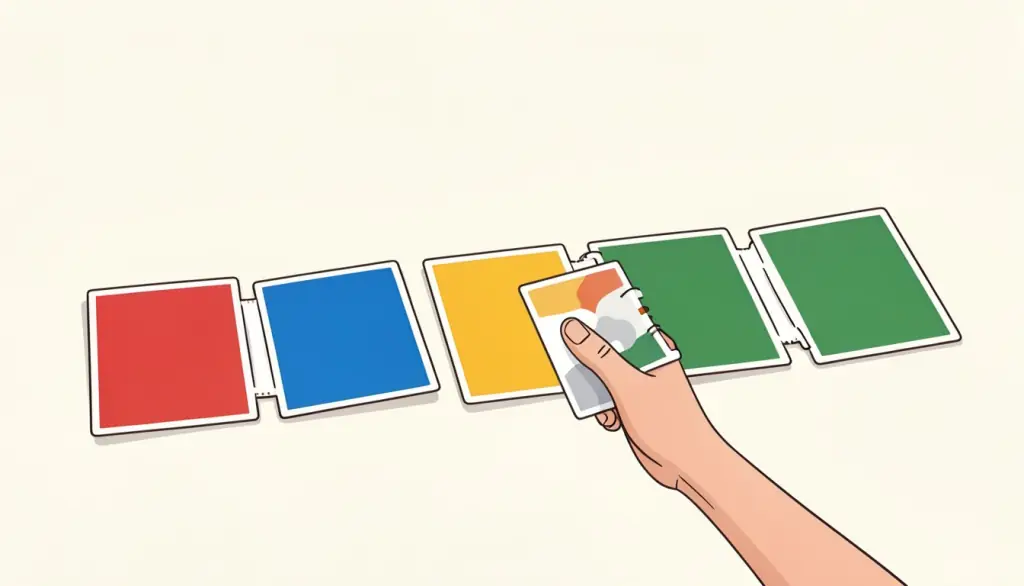
On page size we want to be clear about how our tool works, because it differs from some others. Each image becomes a page sized to fit that image. There is no option to force everything onto A4 or Letter, and no margin setting. In practice this is usually what you want for photos of documents: the page looks like the paper, with no extra white frame around it. It does mean that a tall phone photo and a wide screenshot produce pages of different shapes in the same PDF.
If you need uniform pages, the easiest fix is upstream: crop every photo to roughly the same proportions before converting. For a document that will be printed, cropping close to the paper edge also gives you a page that prints at a natural size. And if a page ends up sideways after all, Rotate PDF can fix the finished file without redoing anything.
Keeping the file size under control
Our converter places the images into the PDF without re-encoding them, so a sharp photo stays sharp. The flip side is that the PDF weighs about as much as all the images combined. A modern phone photo is often 3 to 5 MB, which means a ten-page document can easily reach 40 MB. Many upload portals stop at 2, 5 or 10 MB, and email attachments over 20 MB tend to bounce.
Our rule is simple: convert first, compress second. Run the finished PDF through Compress PDF, where you can also type a target size in KB if a form has a strict limit. Photos of text-only documents shrink dramatically, often to a few hundred kilobytes, while staying perfectly readable on screen. If the form says 1 MB, we aim a little lower, because some sites count a megabyte as one million bytes.
Two other habits help. Cropping removes pixels you do not need, so a cropped photo is smaller before compression even starts. And if you shoot documents often, our Scan to PDF tool is worth a look: it takes photos straight from the phone camera, has a document mode that sharpens text into clean grayscale, and saves every page as one A4 PDF, which also solves the uniform page size question.
Phone photos in other formats: HEIC and PNG
iPhones save photos as HEIC by default, and not every converter understands that format. Rather than converting each photo to JPG first, use HEIC to PDF, which takes the photos as they are. Screenshots are usually PNG; JPG to PDF accepts PNG files too, so you can mix a few screenshots with your photos in the same document.
If you are collecting documents for something like a rental application, it is often worth combining several PDFs at the end. Convert each set of photos separately, then use Merge PDF to join them with any PDFs you already have, such as a bank statement. If you need a form to go with it, our fillable templates at /templates cover common documents like rental applications and invoices, which you can complete and download as a PDF.
Frequently asked questions
Can I put several JPG images into one PDF?
Yes. Add as many images as you need; each becomes one page of a single PDF, in the order you set with the arrows.
Can I choose A4 or Letter page size?
Not in JPG to PDF; each page is sized to fit its image. Scan to PDF saves pages as A4 if you need uniform pages.
Why is my PDF so large?
Images are embedded without re-encoding, so the PDF is about as big as the photos combined. Run it through Compress PDF afterwards.
Are my photos uploaded to a server?
No. JPG to PDF runs in your browser, so the images stay on your device. You need a free account to use it.
Can I mix JPG and PNG files?
Yes. Both formats are accepted in the same PDF. For iPhone HEIC photos, use HEIC to PDF instead.