How to Rotate PDF Pages and Save Them That Way
Published:
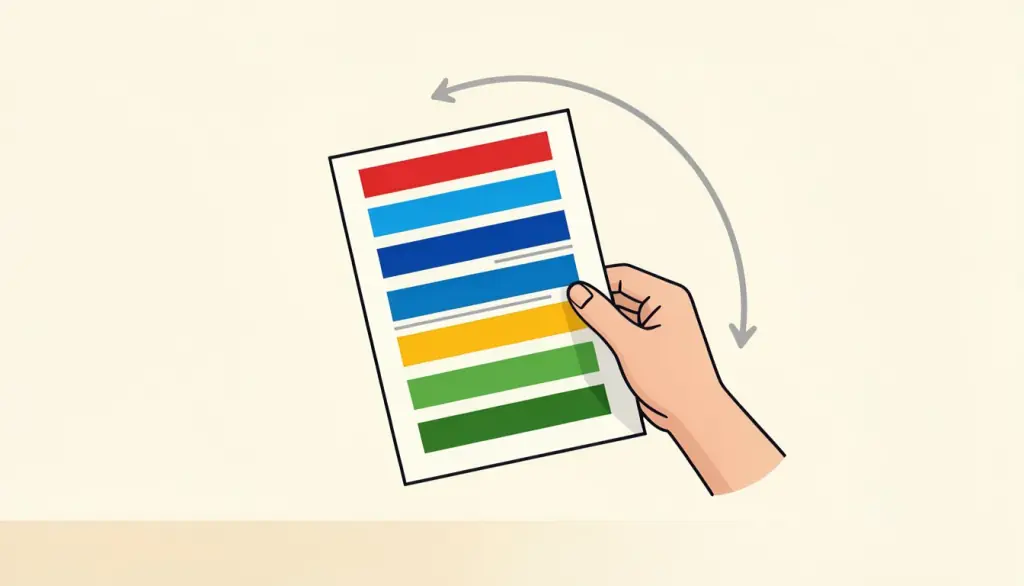
You open a scan and every page is lying on its side. You click the rotate button in your PDF viewer, the pages turn upright, and you send the file. Then the recipient replies with a screenshot of sideways pages. The rotation you applied never made it into the file.
This happens constantly, and it is not your fault: most viewers rotate only what you see on screen. In this guide we explain the difference between rotating the view and rotating the file, how to fix all pages or just a few, and what to do with scans that are crooked rather than turned.
Why rotating in your viewer does not stick
Viewers such as browser PDF readers and many desktop apps treat rotation as a viewing preference, like zoom. It changes how the page is drawn on your screen in that moment and disappears when you close the document. Some programs do offer to save the change, but many do not, and the rotate button gives no hint which kind it is.
There is also a subtler problem. A PDF page can carry a rotation flag that tells viewers to turn it. Most programs respect that flag, but not all of them, so the same file can look upright in one app and sideways in an upload portal's preview. Rotating with a dedicated tool writes the angle into the file properly, which settles it in practically every program we have tried.
How to rotate a PDF step by step
pdfdots Rotate PDF runs in your browser, so the document is not uploaded. The pages are not re-rendered either; only their orientation changes, which means text stays selectable and quality is identical to the original. You need a free account; the free plan allows 3 tasks per day with files up to 10 MB.
- 1. Open Rotate PDF and drop your file into the box.
- 2. Pick the rotation: 90 degrees clockwise, 180 degrees, or 270 degrees (a quarter turn counter-clockwise).
- 3. Click Rotate PDF. The corrected file downloads automatically.
- 4. Open it in a different viewer than the one you normally use, to confirm the rotation is saved in the file.
All pages or just a few
Rotate PDF turns every page in the document by the same angle. That is ideal for the most common case, a whole scan saved sideways, but it is not what you want when only pages 3 and 7 are upside down. Rotating everything would just break the pages that were already right.
For mixed documents we work in three small steps. First, pull the wrong pages out with Extract Pages, so you have a short PDF containing only the sideways pages. Second, rotate that small file. Third, use Remove Pages on the original to drop the old versions, combine both files with Merge PDF, and drag the corrected pages back into place in Organize PDF, which shows every page as a thumbnail so you can see exactly where each one belongs.
That sounds like a lot, but each step takes seconds and the result is a clean, permanently fixed document. A quick way to decide on the route: if more than half of the pages are wrong in the same way, rotate the whole file first, then treat the pages that are now wrong as the exceptions and fix only those with the extract, rotate and merge routine.
One tip that saves confusion: write down the page numbers of the sideways pages before you start, because the numbering changes once you extract and merge. With a short list on paper, putting each page back into its original position in Organize PDF is straightforward.
Scanned pages that come out sideways
Scanners and phone scanning apps decide orientation based on how the paper went in or how the phone was held, and they get it wrong often. A landscape table scanned in portrait, a stack fed in with one sheet turned around, a photo taken with the phone held sideways: all common, and all fixable with a quarter or half turn.

Rotation fixes pages turned by 90, 180 or 270 degrees. It cannot fix a page that is slightly crooked, say tilted by five degrees because the paper slipped in the feeder. That is a skew, not a rotation, and the honest fix is to rescan that page. If you plan to run OCR PDF on a scan, rotate first; text recognition works best on upright pages, and the resulting searchable PDF will also be easier to read.
Rotate before you do anything else
Orientation affects every step after it, so we make rotation the first thing we do to a fresh scan. Page numbers added to a sideways page end up running up the margin. A watermark lands at a strange angle. PDF to JPG produces sideways images you then have to fix one by one. Fix the orientation once, at the start, and everything downstream lines up.
Our usual order for a scanned bundle is: rotate, remove blank or duplicate pages, reorder if needed, add page numbers, and finally compress if the file has to fit an upload limit. If you are assembling a document set from scratch, such as a rental application, our fillable templates at /templates produce correctly oriented PDFs from the start, and you can merge your rotated scans in afterwards.
Landscape pages in a portrait document
Not every sideways page is a mistake. A wide table or a chart in a report is often deliberately set in landscape, and it should stay that way in the file; readers on screen simply turn their head or the viewer, and on paper the page is turned. Rotating such a page to portrait would make the content run up the page instead of across it.
The question to ask is whether the content reads correctly when the page is turned the way it is meant to be held. If the text in a landscape page runs from the bottom up instead of left to right, it needs a turn; if it reads normally in landscape, leave it alone.
Frequently asked questions
Why does my PDF go back to sideways after I rotate it?
Most viewers rotate only the view on screen. Rotate PDF writes the rotation into the file so it stays fixed everywhere.
Can I rotate just one page?
Rotate PDF turns all pages. Extract the page, rotate it, merge it back and put it in place with Organize PDF.
Does rotating reduce quality?
No. Pages are not re-rendered; only their orientation changes, so text stays selectable and images stay sharp.
Can it straighten a slightly crooked scan?
No. Rotation works in 90-degree steps. A page tilted by a few degrees needs to be rescanned.
Is my file uploaded?
No. Rotate PDF runs in your browser. You need a free account, and the free plan includes 3 tasks per day.