How to Make a Scanned PDF Searchable
Published:
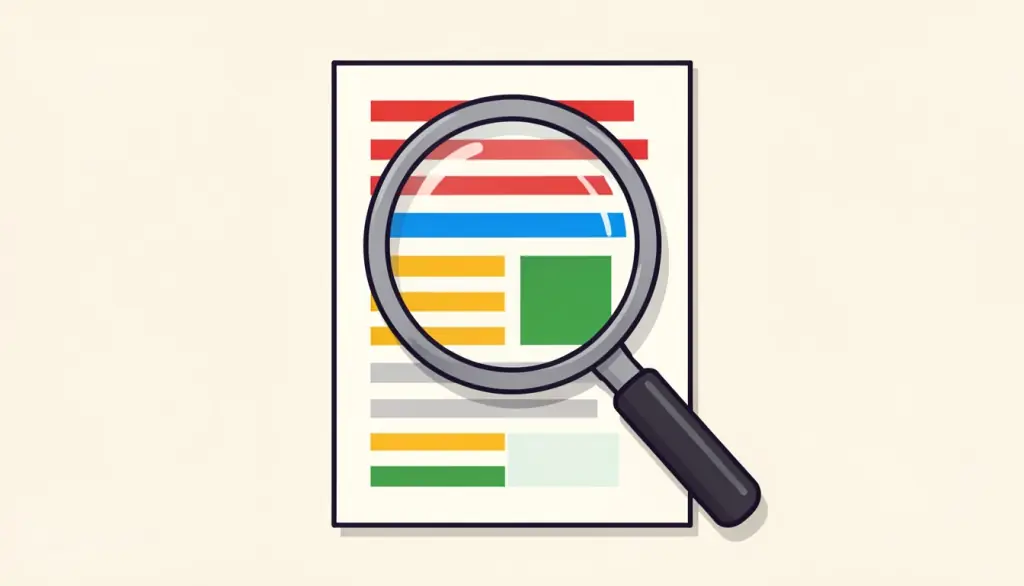
You open a scanned contract, press Ctrl+F to find a clause, and get zero results, even though the word is right there on the screen. Or you try to copy an account number from a scanned statement and the cursor just draws a blue box over the whole page. The file looks like a document, but to your computer it is only a set of photographs.
Optical character recognition, or OCR, fixes that. In this guide we explain what OCR actually does to a PDF, how we run it, how to get accurate results, and what to do with a searchable file once you have one.
Why a scanned PDF is not searchable
When a scanner or phone app creates a PDF, it stores each page as an image. A PDF exported from Word is different: it contains actual characters, which is why you can search and select them. A scanned page has pixels shaped like letters, but no letters.
A quick test tells you which kind you have. Try to select a single word. If you can highlight it on its own, the PDF already has text. If the whole page gets selected as one block, or nothing happens, it is a scan and needs OCR.
What OCR does to your PDF
OCR analyses each page image, recognises the characters, and adds them to the PDF as an invisible text layer placed directly under the words you see. The pages look exactly the same as before, but search, copy and paste, and screen readers now work, because there is real text underneath.
pdfdots OCR PDF uses Tesseract, a well-established open-source engine, and runs it in your browser. Your document is not uploaded. The only download is the language model for the language you pick, around 10 to 20 MB, which your browser keeps so later runs start faster. You need a free account, and there are no ads or watermarks.
How to run OCR on a scanned PDF, step by step
The process takes a few clicks, then some patience while the pages are recognised.
- Open OCR PDF and drop your scanned file into the box, or click to choose it.
- Choose the document language: English, Turkish, Spanish, Portuguese, German or French.
- Click Run OCR and wait while each page is recognised. Expect a few seconds per page on a typical computer, longer on a phone.
- Download the searchable PDF and test it with Ctrl+F or Cmd+F.
How to get accurate results
OCR quality depends mostly on the scan. Clean, straight, evenly lit pages give very good results. Blurry phone photos, skewed pages, tiny print and decorative fonts lead to more mistakes, and handwriting is not reliably recognised at all.
- Pick the correct language. It noticeably improves recognition of accented letters and common words.
- Straighten crooked pages first. If a page is sideways or upside down, fix it with Rotate PDF before running OCR.
- Cut long scans down. If you only need a few pages of a 300-page archive, pull them out with Extract Pages first to save a lot of waiting.
- Rescan if you can. When a page comes out full of odd characters, a sharper scan helps more than anything else.
Why the output file is bigger, and what to do about it
Before recognition each page is re-rendered at about 200 DPI, and that rendered image goes into the new file together with the text layer. As a result, the searchable PDF is often larger than the original scan. If you need to email it or upload it somewhere with a size limit, run it through Compress PDF afterwards. The text layer survives compression, so the file stays searchable.
Building a searchable archive of old paperwork
OCR really pays off when you apply it to a whole collection. We have turned boxes of old letters, warranty cards and tax documents into a folder of searchable PDFs, and finding a specific invoice from years ago now takes a quick search instead of an afternoon in the cellar.
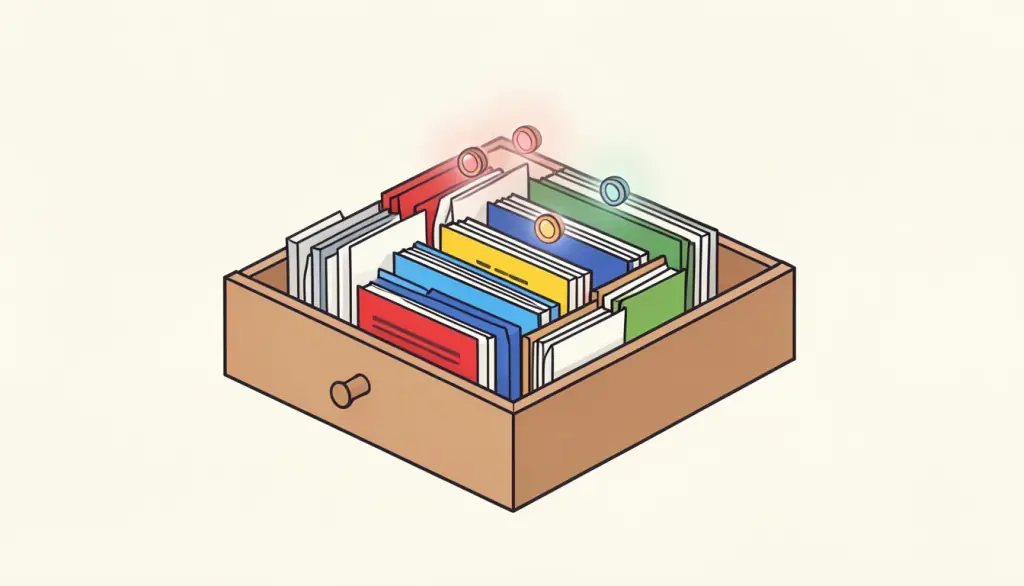
Our routine is simple. We scan each document as its own PDF, or scan in batches and cut them apart with Split PDF. Then we run OCR on each file, give it a descriptive name, and store it in a folder per year. Both Windows and macOS index the text layer of PDFs, so a system-wide search for a name or an amount finds the right document even if the word only appears on page seven.
Accuracy on old paperwork varies. Faded thermal receipts and carbon copies are hard for any engine, so for documents that really matter we also keep a short note of the key details in the file name.
What to do with a searchable PDF
Once the text layer is in place, a lot more becomes possible. PDF to Text pulls the recognised text out as a plain text file, which is handy for quoting or feeding into other software. Compare PDF can spot differences between two versions of a scanned contract.
Converting to an editable format also works far better after OCR. PDF to Word and PDF to Excel run on our conversion server in Germany, where files are deleted right after processing, and they give much cleaner results when the PDF already contains real text instead of pictures of text.
Frequently asked questions
Is my scanned PDF uploaded for OCR?
No. OCR runs entirely in your browser. Only the language model is downloaded once, and your file stays on your device.
Will the pages look different after OCR?
No. The recognised text is added as an invisible layer under the page image, so the pages look the same.
Can OCR read handwriting?
Not reliably. It works best on printed text from clear, straight scans.
Why does OCR take so long?
Recognition happens on your own device and takes a few seconds per page, so long documents need some patience. Extract only the pages you need to speed it up.
Which languages does OCR PDF support?
English, Turkish, Spanish, Portuguese, German and French. Choose the language of your document before you start.