What Does Flattening a PDF Mean, and When Should You Do It?
Published:
You filled in a PDF form, saved it and sent it off, and the recipient tells you some fields are empty. Or you notice that anyone who opens your carefully completed application can click into the amount field and type something else. Both problems have the same cause: a filled form is still a form, with live fields sitting on top of the page.
Flattening fixes that. In this guide we explain what flattening actually does to a file, when we flatten and when we do not, how to do it with our tool after filling a form, and what flattening does not cover, so you know exactly what the recipient will receive.
What flattening actually does
A fillable PDF has two layers of meaning. There is the page itself, with printed labels and lines, and on top of it there are interactive form fields: text boxes, checkboxes, radio buttons and dropdowns, each holding a value you typed or selected. Viewers draw those values, but they are still data that can be edited, reset or displayed differently by different programs.
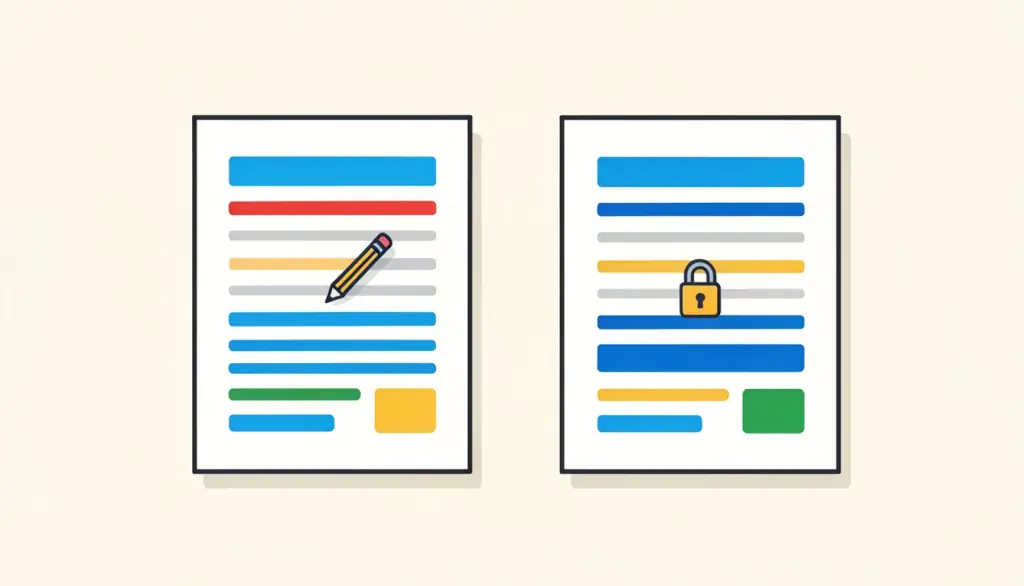
Flattening takes every form field and its current value and merges them into the page content. Afterwards there are no fields anymore, only text and marks drawn on the page, exactly where the answers were. The document looks the same, but nobody can click into it and change an answer, and every viewer and printer shows the same thing.
When to flatten a PDF
We flatten right before a filled document leaves our hands for good. These are the typical cases:
We do not flatten documents that someone else still needs to fill in, such as a form we pass to a colleague for the second half, or a template we reuse every month. Flattening is the last step, not a middle one.
- Applications and official forms sent to an authority, where the answers should not change in transit.
- Invoices and order forms built from fillable templates, before they go to a client.
- Signed agreements going into an archive, so the file stays exactly as it was signed.
- Forms that will be printed, because some viewers print empty fields or reset values.
- Files that will be converted to PDF/A, where interactive fields can cause trouble.
What flattening does not do
We want to be precise here. Our Flatten PDF tool flattens form fields. Other kinds of annotations, such as comments, sticky notes and review highlights, are left as they are. If a file still contains review comments you do not want the recipient to see, delete them in the program where they were added before you flatten.
Flattening is also not encryption. The answers become ordinary page content, which is much harder to change casually, but someone with a PDF editor could still draw over it. If the file must be locked against opening by the wrong person, add a password with Protect PDF after flattening. And flattening is one-way: there is no button that turns the fields back into editable fields.
Fill, sign and flatten with pdfdots, step by step
Both Fill PDF Form and Flatten PDF run in your browser, so your answers and your document are never uploaded. You need a free account; the free plan includes 3 tasks a day for files up to 10 MB, and the paid Bronze, Silver and Gold plans raise those limits. If you do not have a form yet, our fillable templates at /templates cover common documents such as invoices and letters, and they work with the same routine.
- 1. Open your form, or a template from /templates, in Fill PDF Form and complete every field.
- 2. Save the filled file and keep this editable version for yourself.
- 3. If the document needs a signature, add it with Sign PDF.
- 4. Open Flatten PDF, drop in the filled file and click Flatten PDF.
- 5. Download the flattened copy, open it and try clicking a field: nothing should be editable. Send or archive this copy.
Keep two copies, and other habits
Our most useful habit is simple: keep the editable original and send the flattened copy. Name them clearly, for example application-editable.pdf and application-final.pdf. When a detail changes a week later, and it often does, you edit the original and flatten again instead of retyping the whole form.
For archiving, the order that works best for us is fill, sign, flatten, and then, if the archive or authority asks for it, convert to PDF/A as the very last step. Flattening first removes interactive elements that could otherwise complicate the conversion, and it guarantees that the archived file shows exactly what you submitted.
How to tell whether a PDF is already flat
Open the file and click on an answer. If a cursor appears or the field becomes highlighted, it is still a live form field. Many viewers also show a banner saying the document contains fillable fields, or shade the fields in light blue. A flattened file shows none of that; the answers behave like any other printed text.
Another quick test is printing to PDF and comparing. If some answers disappear in the printed copy, the form relies on fields that this viewer does not render correctly, which is exactly the problem flattening solves before you send the file to someone else.
If you received a form that is already flat, meaning there are no fields at all, our flatten tool has nothing to do. In that case you can still type onto the page with Edit PDF, but the result is an annotation on top of the page rather than a form answer, so check what the recipient expects.
Frequently asked questions
What does flattening a PDF do?
It merges fillable form fields and their typed values into the page, so the answers can no longer be edited.
Can I undo flattening?
No. Keep a copy of the editable original if you might need to change answers later.
Are comments and sticky notes flattened too?
No. Our tool flattens form fields only; other annotations stay as they are.
My form is still empty. What should I do?
Fill it first with Fill PDF Form, or start from one of our fillable templates at /templates, then flatten the saved file.
Is my PDF uploaded?
No. Flattening runs in your browser and the file stays on your device.