How to Convert iPhone Photos to a PDF
Published:
You photograph a receipt, a signed form or the pages of a document with your iPhone, then try to upload the pictures to an expense system or an application portal, and it refuses them. The reason is usually the format: iPhones save photos as HEIC by default, and plenty of websites and Windows computers still do not accept it. Many portals also want one PDF, not a handful of images.
In this guide we show how we turn iPhone photos into a single tidy PDF, how to get the page order right, how to take photos that convert well, and what to do when the result is too big to upload.
Why iPhone photos are HEIC, and why that causes trouble
HEIC (also called HEIF) is Apple's default photo format since iOS 11. It stores high-quality pictures in roughly half the space of a JPG, which is great for your phone's storage. The trouble starts when the photos leave Apple's ecosystem: many upload forms only allow JPG, PNG or PDF, and Windows often needs an extra codec to even open a HEIC file.
Converting straight to PDF solves both problems at once. A PDF opens everywhere, and it bundles several photos into one file with one page per photo, which is exactly what most reimbursement and application systems expect.
How to convert HEIC photos to PDF, step by step
pdfdots HEIC to PDF decodes and converts the photos in your browser, so your pictures are never uploaded. That matters for ID copies, medical paperwork and anything else personal. You need a free account, and there are no ads, limits or watermarks.
- Get the photos onto the device you are using: on the iPhone itself, save them to the Files app; on a computer, AirDrop them or copy them from iCloud.
- Open HEIC to PDF and drop the .heic or .heif files into the box, or click to choose them.
- Use the up and down arrows to put the images in the right order. Each photo becomes one page.
- Click Convert to PDF and download the single PDF.
Taking photos that convert well
A PDF is only as good as the photos inside it. We lay documents flat on a dark, plain surface, which makes the edges of the paper easy to see, and shoot from directly above so the text is not stretched into a trapezoid. Daylight from a window beats the phone's flash, which tends to leave a bright glare in the middle of glossy paper.
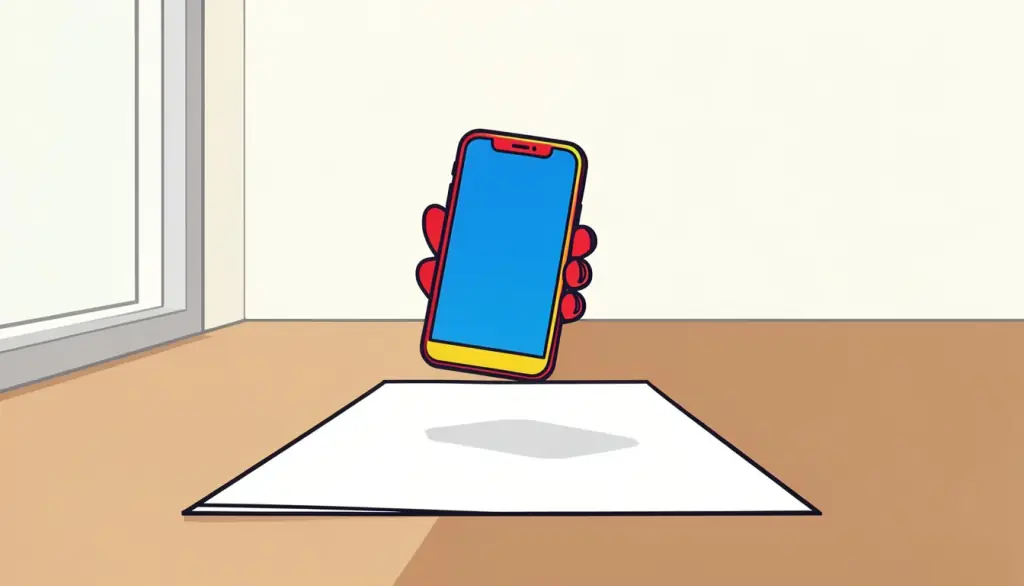
Crop each photo in the Photos app before converting. Removing the table edge and your fingers makes the page look much more like a scan and keeps the file smaller. If you are photographing a multi-page document, shoot the pages in order; they usually come out in that order when you add them, which saves you reordering later.
Common uses we see for photo PDFs
Most of the photo PDFs we make fall into a handful of categories, and each has its own small trick. For expense reports, we photograph all receipts from a trip, convert them in one batch in date order, and submit one PDF instead of a dozen images. Finance teams appreciate it, and nothing gets lost.
For applications that ask for a copy of an ID card, we photograph the front and back, put the front first, and convert both into a two-page PDF. Because the conversion happens on our own device, the ID photos never pass through a third-party server. For school or university homework written on paper, one photo per page in the right order gives teachers a document they can scroll through rather than a gallery of attachments.
Photos of whiteboards and handwritten notes also work well, although the text inside them is still just an image. If you need to search printed text in the finished PDF, run it through OCR PDF afterwards, which adds a searchable text layer to the pages.
When the PDF is too large to upload
Modern iPhone cameras take photos of 12 megapixels or more, and a PDF built from ten of them can easily be larger than a portal's 5 MB or 10 MB upload limit. When that happens we run the finished file through Compress PDF, which usually shrinks photo-based PDFs considerably while keeping the text readable.
If one photo came out sideways, fix it with Rotate PDF rather than retaking it. If you converted some pages on your phone and some on your computer, Merge PDF combines the results into one file.
What if my photos are JPG, not HEIC?
Not every iPhone photo is HEIC. If the camera is set to "Most Compatible" in Settings, or if the image was shared through a messaging app or downloaded from email, it is often a JPG instead. Screenshots are usually PNG. In those cases use JPG to PDF or PNG to PDF, which work the same way.
If you want to stop the problem at the source, you can switch your iPhone camera to "Most Compatible" under Settings, Camera, Formats. Photos will then be saved as JPG, at the cost of using more storage.
Frequently asked questions
Can I combine several iPhone photos into one PDF?
Yes. Add all the HEIC files, reorder them with the arrows, and each photo becomes a page in a single PDF.
Are my photos uploaded to a server?
No. HEIC to PDF converts the photos entirely in your browser, so they stay on your device.
Does it work on Windows without a HEIC codec?
Yes. The conversion runs in any modern browser, so you do not need to install anything.
Can I convert directly on my iPhone?
Yes. Save the photos to the Files app, open HEIC to PDF in Safari, choose the files and download the PDF.
Why is my PDF so large after converting photos?
Each iPhone photo keeps its full resolution. Run the finished PDF through Compress PDF to shrink it for email or upload forms.